PC health check
Before Viktor cleans anything, it can first take a look at how your PC is doing. The check is purely "read-only" — it only reads, changes nothing. The result is summed up into a 0–100 score and a list of findings.
What Viktor checks
| Area | What it finds |
|---|---|
| System disk space | how much is free on the system disk, with a fill bar (this is what Viktor can clean itself) |
| Data disk space | whether other disks are running low — each disk has a fill bar; Viktor doesn't touch your data, but one click opens the Space map so you can see where the space went |
| Disk health (SMART) | the declared status; it trusts internal disks (NVMe/SATA) even without admin rights, for USB enclosures it honestly admits "I can't see inside" |
| Disk errors | real read errors from the event log (bad blocks) |
| System disk: SSD vs HDD | whether Windows runs on an SSD — moving off a spinning disk is the biggest real speed-up |
| TRIM (SSD maintenance) | whether the SSD has TRIM enabled (without it, it slows down over time) |
| RAM speed | whether it's running below its potential (XMP/EXPO disabled) |
| Memory population (channels) | whether RAM runs multi-channel; one module = half the bandwidth |
| Memory test | the result of Windows Memory Diagnostic, when you run it — and the offer to run it stays within reach for good, even after it has run once |
| Memory in use | how much RAM is free right now and how the system stands against its own limit; it only speaks up when both are low |
| Unexpected shutdowns | hard resets and blue screens (BSOD) from the log |
| Hardware errors (WHEA) | corrected and fatal memory/CPU/PCIe errors |
| CPU clock | whether the CPU may reach its full/turbo clock, or a power setting throttles it (max state < 100 % / boost disabled) |
| Power plan | whether "Power saver" is needlessly holding the CPU back |
| BIOS age | warns about very old firmware |
| Startup programs | how many things slow the start (more here) |
Fill bars and the flagged failing disk
The bar on each disk is coloured by fill: green up to 75 %, orange from 75 %, red from 95 %. And when a disk physically reports trouble (SMART, or bad blocks in the event log — this catches even disks in a USB enclosure that SMART can't see into), Viktor flags it in the space overview with a red frame and model name, so you can tell at a glance which piece of iron it is. The warning itself with the explanation is in the disk-errors card — nothing repeats here.
Disk chronicle: the event log names disks only by number — and the numbers get shuffled after a restart (especially with USB enclosures). So Viktor assigns older errors by the records from the time they happened: from its own chronicle and from the Windows system log, which keeps months of history of connected disks — so it recognises a bad disk by name even right after installation. And because bad sectors don't heal, a once-proven failing disk stays flagged (by serial number) even after the old log errors expire — it stops reporting only after you unplug the disk. When there's no record, Viktor honestly says the disk can no longer be traced — it never guesses and never accuses an innocent disk.
The score is honest
Start at 100, each finding subtracts by severity (critical −40, worth-a-look −15, info −3). No inflation, no dark patterns. Traffic light: green ≥ 80, yellow 50–79, red < 50.
The score counts HEALTH only, not PERFORMANCE
Findings answer two different questions — and only one of them is the score:
- HEALTH — "is the machine all right?" Bad blocks, SMART, unexpected shutdowns, WHEA
errors, space running out, BIOS age. This does take points.
- PERFORMANCE — "is it set up to run at full speed?" TRIM, memory speed and channels,
memory in use, power plan, CPU clock, SSD vs HDD and startup programs. Nothing here is
broken, it can only be set up better. This never takes points.
The two used to be added together, so a healthy computer lost points over a tunable
setting — for example −15 for eight startup programs. That is strictness without a reason:
a slower start is not a sick computer.
What else takes no points
- Things that could not be determined — Viktor would rather admit he does not know
than guess.
- Viktor's own housekeeping — such as the reminder that items in the Hole are nearing
their deadline. Having something in quarantine is not a defect of the computer. That is
why it no longer sits among the findings: you will find it by the Hole button, where
it belongs.
Memory in use (and why it takes no points)
In the app you will find it on the left, under the disks; on the command line under PERFORMANCE — a live figure for how much RAM is free right now. And its bar is not solid: it is split into parts by what is taking the memory. The seven biggest programs plus the rest (system, drivers, everything smaller). Hover over it and a list with numbers drops out, including how many processes a program runs in — a browser often has over twenty.
The parts add up to the used memory exactly, because the rest is calculated back, not summed. Working Set counts shared libraries with every process, so a plain sum would overflow the bar.
The parts are coloured by where they sit on the bar — dark green on the left, then
amber, orange and red towards the right. So the colour says nothing about the program:
the same Spotify is green on an empty machine and orange on a full one. And because the
position is measured across the whole bar, nothing reaches red on a half-empty machine —
red means "memory really is full", not "this program is the worst".
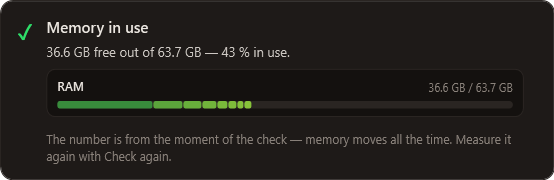
It is there to explain, not to punish: full memory is not a fault in itself. Windows deliberately uses spare memory for cache — a PC with empty RAM is only wasting it.
So Viktor:
- measures available memory, not "free" (available = free plus what can be released at once),
- speaks up only when there is little available memory and at the same time the system has used up its own limit — either one alone means nothing yet,
- never lowers the health score for it.
When it does speak up, it says what to do about it straight away: what helps most is cutting down what starts on its own — and the startup programs list is right there.
The figure is true as of the moment of the check. Memory changes every minute, so when you want the current state, re-measure it with Check again — the circular arrow in the bottom bar on the right, right next to the globe. Otherwise the check runs when Viktor starts and after every action.
Who handles a finding
- "Cleanup" — when space runs low; opens the Cleanup window where you pick what goes.
- "Tune" — startup programs; Viktor disables them safely and reversibly, the program stays installed.
- "Recommendation" — hardware/firmware (BIOS, XMP, SSD, power plan); Viktor only advises, doesn't touch it.
Checks of the "is the hardware running at full?" type (SSD, RAM channels, power plan, TRIM, CPU clock) only read settings — no time-wasting benchmarks or blind measuring, just honest advice on what to improve.
Note: for the CPU we don't look at the instantaneous clock (it fluctuates on purpose — it drops when idle, which is correct). We only watch whether a power setting is holding it artificially down (max state < 100 %, boost disabled) — only that means "not running as it could".
Why cleanup doesn't blind the check
The check reads the Windows Event Log. Viktor never deletes it (not even with "log cleanup" — see retention). So your diagnostic history stays untouched.